Download MT Manager v2.26.10 APK
Get the Android package and check the requirements before installing. The download is 37.5 MB; leave additional space for installation, extracted archives and copies of files you plan to edit. This is the standard package, with free features and separate VIP options.
Android only. Keep a backup of important files before editing or replacing them.
A phone’s basic file browser is often enough to find a download, but more involved jobs benefit from seeing two locations together. This app combines a dual-pane file manager with archive tools, text editing and Android package inspection. You can organise folders, check a configuration file and examine an APK within the same workspace.
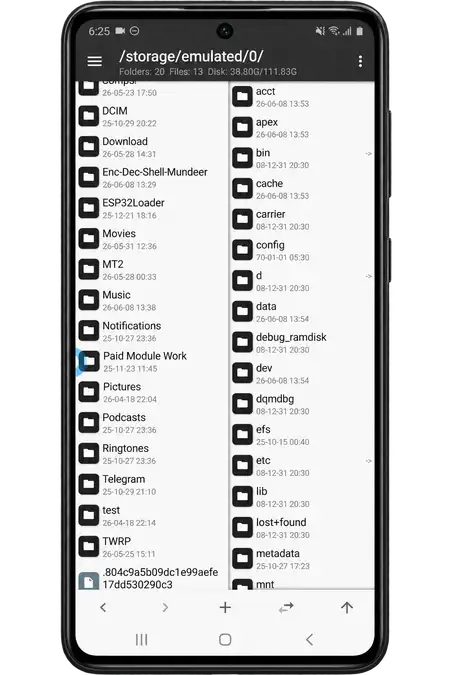
The two-panel layout is the first thing to understand. One side is your active location; the other becomes the destination for operations such as copying or extracting. Once both paths are set, you can move between folders without repeatedly backing out to choose a new destination.
Ordinary file management does not require a rooted phone. Protected system locations are a different matter, and Android’s storage restrictions still apply. Advanced package editing also needs more care than moving a photograph: a saved change can affect installation, signatures or how an app behaves.
MT Manager Features and Everyday Tools
Begin with the file browser and add editing tools as you need them. Some advanced operations require VIP access or extra device permissions.
Two Folders in One Workspace
Open a source folder in one pane and a destination in the other. Copy and move operations work directly between those panes, so there is no separate paste step to look for. The sync control brings the second pane to the active location when you need a nearby destination. Check both paths before confirming a transfer, especially when similar folder names appear on each side.
ZIP Browsing and Archive Management
Browse a ZIP’s contents without extracting the entire archive first. You can create archives, add files or extract selected entries into the opposite pane. Keep the destination separate from your original files so a repeated filename does not overwrite something important. When an archive contains many items, inspect its folder structure before extracting rather than assuming everything belongs in the current directory.
A Text Editor for Small Changes and Code
Open a text file to review a configuration, correct a line or work on a script. Syntax highlighting makes supported formats easier to follow. Version 2.26.10 adds Markdown preview and formatting support for Python and TypeScript, among other editor changes. Save an untouched copy before changing a working file, then reopen the result to check that its structure and encoding remain suitable.
APK Contents, Resources and Signing
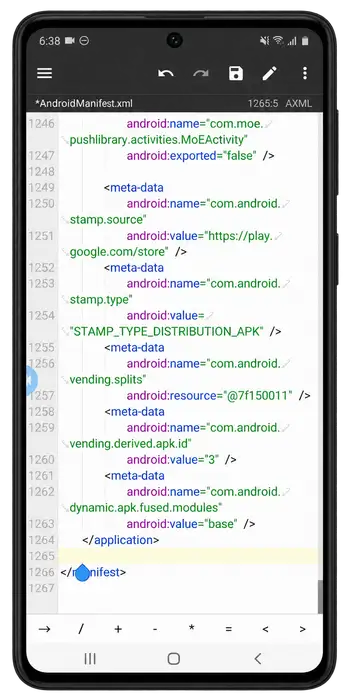
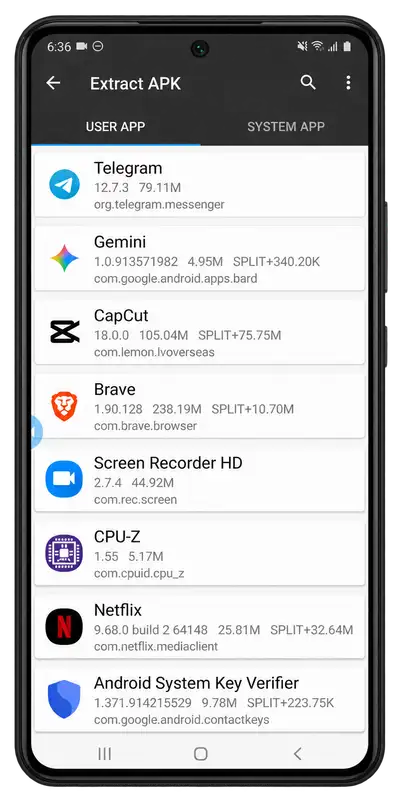
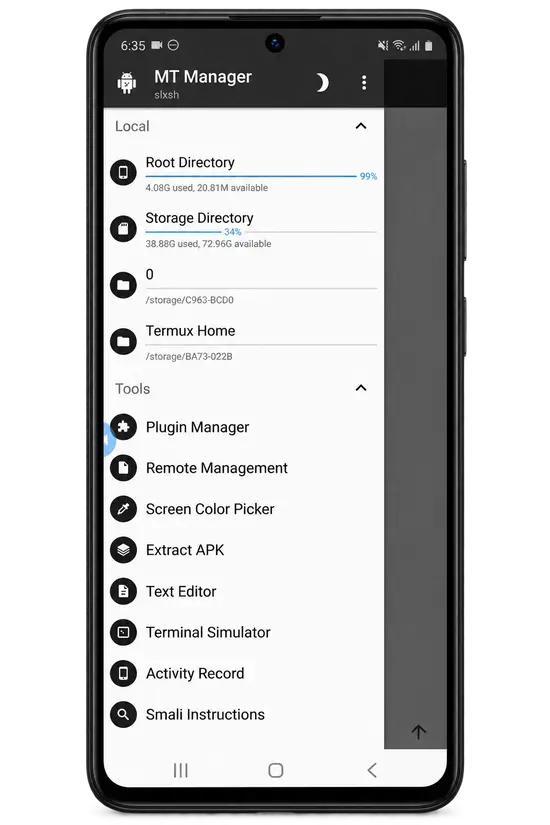
Inspect an Android package’s files and work with supported XML, ARSC and DEX content. The installed-app extraction tool also helps you collect package copies. These tools are useful for learning how your own application is packaged or making authorised resource changes. Rebuilding or signing a package can change its identity for installation purposes. Keep the original APK and test a copy; editing a filename or resource does not guarantee the rebuilt application will run correctly.
Selection, Bookmarks and Quick Navigation
Swipe a file left or right to enter multi-selection, then select the items needed for the operation. Bookmarks shorten the route to folders you use repeatedly. Filtering helps when a directory has too many entries to scan comfortably. Before deleting a selection, review the highlighted files and the active pane; a selection left over from another operation can include more than you intended.
Free Features with Separate VIP Options
The standard app includes useful file and archive tools, while some editing capabilities have paid limits. Advanced XML functions, custom signing keys and several comparison tools belong to VIP access. Basic FTP is available separately from VIP network-storage options such as SFTP, SMB and WebDAV. Check the feature you actually need before assuming that installing the APK unlocks every tool.
How to Install MT Manager on Android
The supplied package is an Android APK. It installs as an app on the phone; it does not require a desktop computer for ordinary setup.
- Check that your device runs Android 5.0 or later and has room for the download and installed app. Back up important files before replacing an existing installation.
- Download the APK and open it from your browser’s downloads or file manager. If Android asks for permission, review installation access for the app handling that file.
- Complete installation and open the app. Read permission requests and allow the access needed for the folders you intend to manage.
- Open a harmless test folder first. Practise copying a small file between panes before trying archives, important documents or Android package changes.
MT Manager Requirements and Permissions
The minimum Android version describes installation support. Access to particular folders still depends on the operating system and the permissions available on your device.
| Requirement | Android setup |
|---|---|
| Operating system | Android 5.0 or later |
| Package version | 2.26.10 · version code 26101061 |
| APK download | 37.5 MB |
| Working storage | Additional space for installation, archive extraction and backup copies |
| File access | Permission to read and write the folders used for your task |
| Root access | Not required for ordinary file management; relevant to protected locations |
Newer Android versions restrict access to some app-data and system directories. A folder appearing in the browser does not establish that it can be changed. Root access can expose additional locations, but system protections can still prevent particular writes. For everyday use, stay with your own downloads and documents rather than altering protected files.
How to Use MT Manager for Your First File Task
A simple copy is a useful way to learn which pane is active and where the result goes. Keep the original file until you have checked the copy.
- Open your source folder in one pane. In the other pane, open a separate destination folder so both paths are visible before selecting anything.
- Select a small file, then choose the copy operation. Confirm the destination shown by the app and check that the new file opens from that folder.
- Try multi-selection with a few test files. Use the sync and back controls to move between related folders without losing track of the destination.
- For a text change, duplicate the file first, edit the copy and save it. Reopen the saved file before replacing a working configuration.
- When inspecting an APK, keep the original package separate from any rebuilt output. A differently signed package may not install over the existing app, and uninstalling that app can remove its local data.
Free Tools and VIP Features Compared
Choose according to the operation you need. Free access covers practical file tasks, while several advanced editors or storage methods have separate requirements.
| Task | Standard access | VIP distinction |
|---|---|---|
| Files and ZIP archives | Core browsing and management tools | Advanced extras depend on the selected feature |
| XML editing | Available with length and speed limits | Expanded editing and search capabilities |
| Hex editor | View content | Saving modifications requires VIP |
| Remote storage | Basic FTP | SFTP, SMB and WebDAV support |
| Signing and comparison | Availability varies by operation | Custom signing keys and several comparison tools |
VIP access and root permissions solve different problems. An account feature does not grant Android system access, and a rooted device does not automatically unlock paid editing tools.
Keep Your Work Easy to Recover
Use the dual-pane browser for a small task first, keep destination paths clear and save original copies before editing. The file, archive and package tools become easier to manage when each change has a clear purpose. Check the saved result before replacing a working file or installing a modified package.